A common question is whether Revision History works inside an LMS.
It does.
This applies to LMSs like Canvas, Schoology, Moodle, Blackboard, and others. The LMS itself is usually not the issue. What matters is how students submit their Google Docs.
The Rule That Matters
Revision History works on native Google Docs.
Some LMS assignment setups keep student work as a live Google Doc. Others convert it into a PDF or a .docx file. Once that conversion happens, the writing process data is no longer available.
So the rule is simple:
- ✅ If the teacher can open the student work as a real Google Doc, Revision History will work.
- ❌ If the LMS turns it into a file or preview, it will not.
Two LMS Setups That Work
There are two common ways to keep student writing as a native Google Doc inside an LMS. Not every LMS supports both.
1. Assignments That Create the Google Doc for the Student (Most Reliable)
Some LMSs support an assignment type that creates and manages the Google Doc automatically for each student. This is often called Google Assignments, though the name and availability vary by LMS and school.
When this option is available:
- The student writes in a Google Doc
- The teacher opens a live Google Doc
- Sharing and permissions are handled automatically
- Revision History works consistently
This is the most reliable setup, but many teachers never see this option because it is not enabled in all LMS environments.
2. Students Submit a Live Google Doc Link
This option works in any LMS and is widely used.
Instead of uploading a file, students submit a link to their Google Doc. As long as the teacher can open the document, Revision History will work as expected.
There is one important requirement:
Submitting a link does not automatically share the document. Students must share their Google Doc with the teacher.
If the document is not shared, the teacher may see the link but will not be able to open the document, and Revision History will not load.
Screenshots
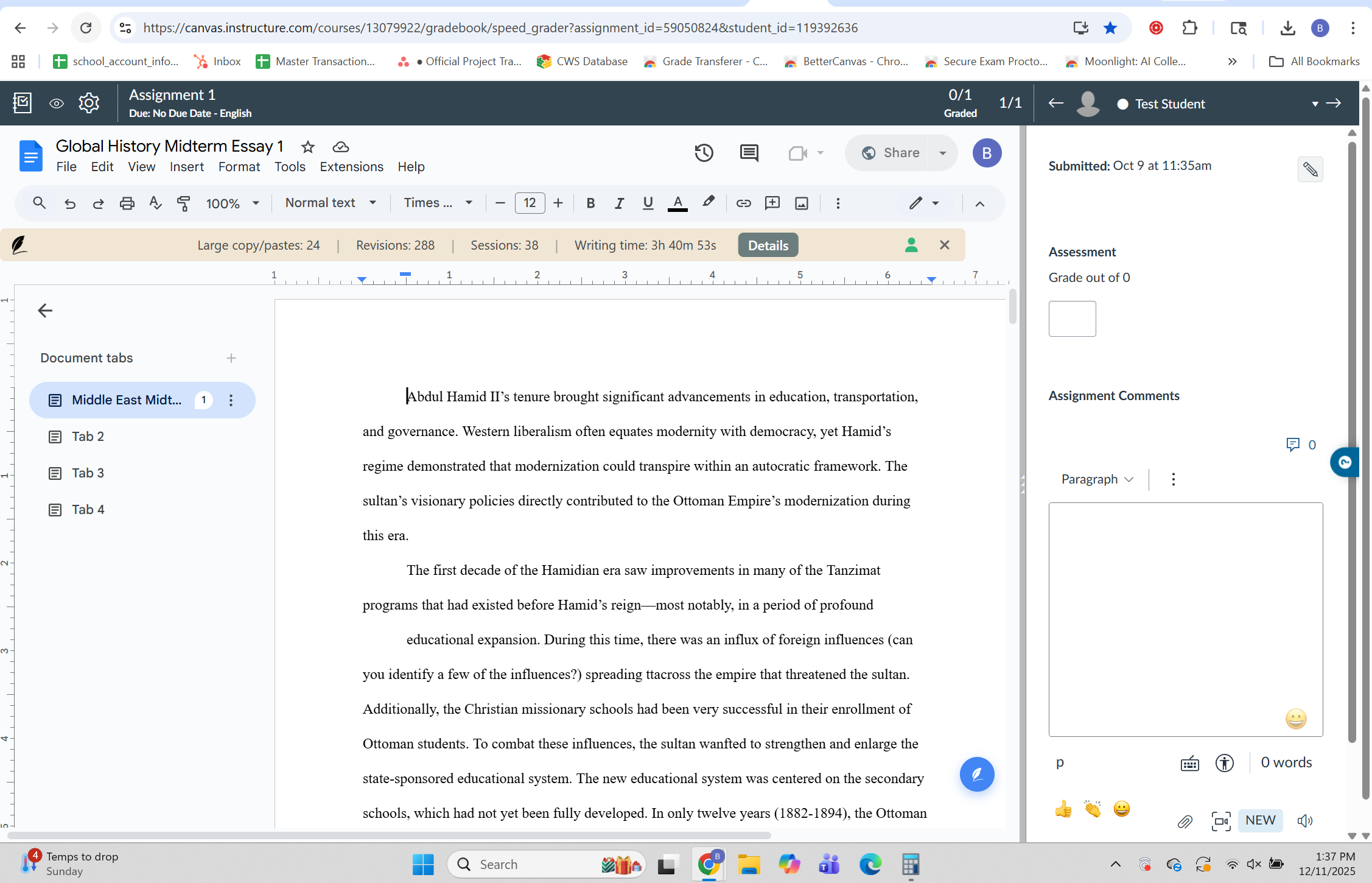
Revision History Loading Inside the LMS Grading View
If the document opens as a real Google Doc, the Revision History sidebar will load. This confirms the setup is working.
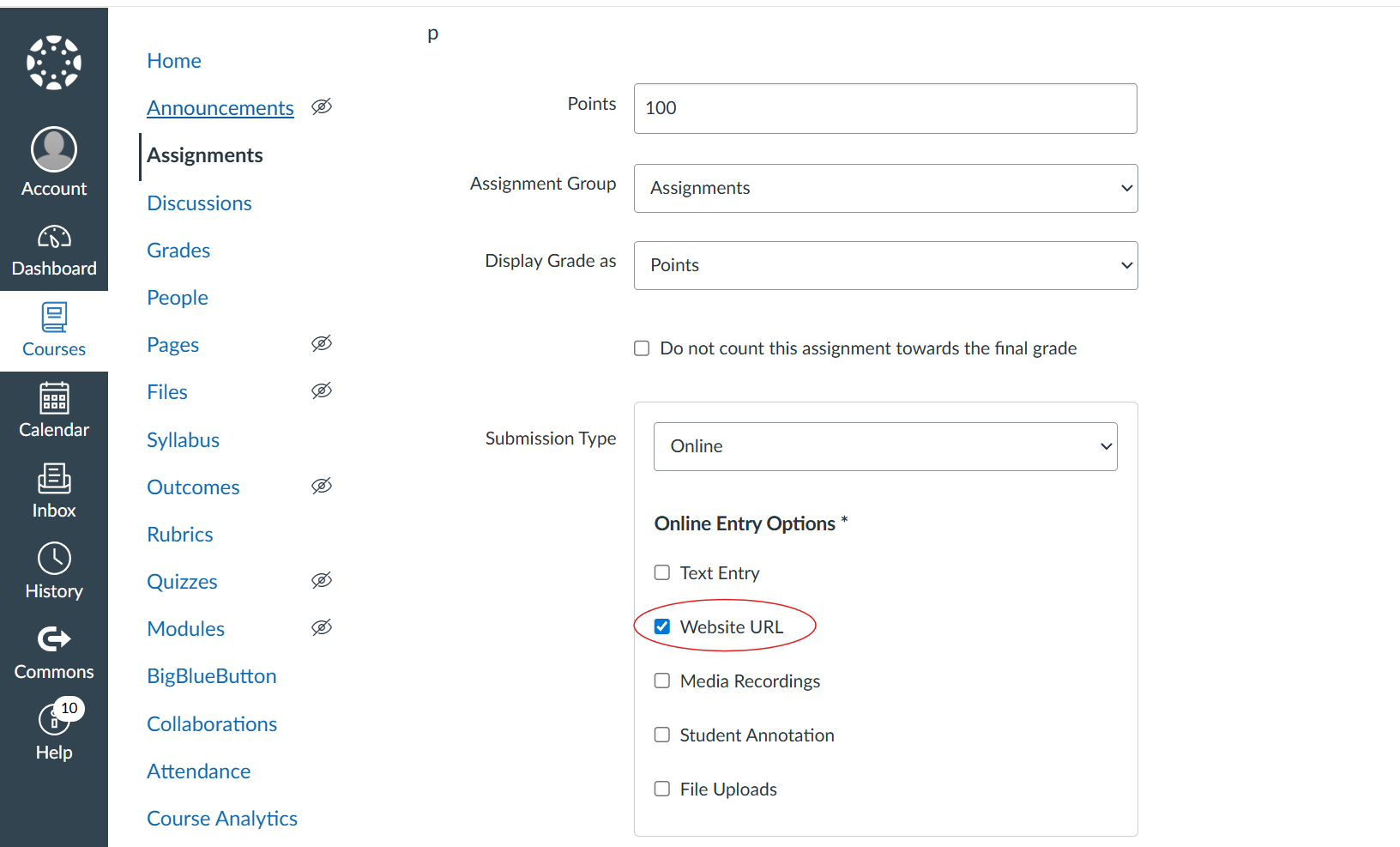
Allowing URL Submission in the Assignment Settings
URL submission must be enabled. If students are required to upload files, the LMS will convert the document and Revision History will not work.
What Does Not Work
The following submission methods break the Google Doc connection:
| ❌ Method | Why It Fails |
|---|---|
| Uploading Google Docs as files | LMSs convert them into PDFs or .docx files |
| Grading views that show PDF previews | Some LMS grading tools display converted previews instead of the live document |
| Embedded Google Docs inside rich text editors | The document may appear, but the underlying Google Doc is not accessed directly |
These are expected LMS behaviors.
The Takeaway
Revision History does work inside LMS environments outside of Google Classroom.
The requirement is straightforward:
- Student writing must remain a live Google Doc
- Teachers must be able to open the document directly
This can happen either because the LMS creates the document automatically, or because students submit a link to a shared Google Doc. If the LMS converts the work into a file, Revision History cannot work.
If you are unsure whether your assignment is set up correctly, feel free to reach out. We are happy to help you sanity-check it.